How to Manage Amazon PPC Campaigns: A Complete Daily Management Guide

Contents expand_more
What Is Amazon PPC Management?
Amazon PPC campaign management is the ongoing process of monitoring, optimising and adjusting your advertising campaigns to maximise profitability. It is not something you set up once and forget. Amazon PPC management requires regular attention, data-driven decisions and the patience to let campaigns accumulate enough information before acting.
The difference between setting up and managing campaigns is fundamental. Setting up is the initial step: creating the campaign, selecting products, defining budgets and bids. Managing is everything that comes after: analysing reports, adjusting bids, adding negative keywords, pausing inefficient campaigns and scaling the ones that work.
If you have not yet launched your first campaign, start with our guide on what Amazon PPC is and then learn how to set up Sponsored Products before returning to this management guide.
Amazon PPC Manager: Person, Tool or You?
An Amazon PPC manager can be several things. It can be an in-house specialist at your company, an external agency, automation software, or you yourself as the seller. The responsibilities are the same regardless of who carries them out: monitoring performance, optimising bids, analysing search terms, managing budgets and making decisions about when to scale or pause campaigns.
Managing Amazon ads does not necessarily require hiring someone. Sellers with 5-15 products can manage campaigns in-house by dedicating 2-4 hours per week. Amazon advertising management becomes more complex with larger catalogues or when available time is limited.
Amazon PPC Campaign Structure
Understanding the organisational hierarchy is essential for managing campaigns efficiently. Amazon organises advertising into distinct levels, each with specific functions.
The Complete Hierarchy
| Level | Description | Example |
|---|---|---|
| Account | Your Amazon seller account | Company main account |
| Portfolios | Optional grouping of campaigns | "Premium Line" portfolio |
| Campaigns | Contain daily budget and global settings | Yoga Mat - SP - Auto - Jan2026 |
| Ad Groups | Contain products and keywords | Green Yoga Mat |
| Keywords/Products | What triggers your ads | "eco yoga mat" |
When to Use Portfolios
Portfolios are optional but useful for organisation at scale. Use portfolios when you have multiple product lines, different brands, or want to set budget caps per category. A portfolio can have a maximum monthly budget that prevents overspending when individual campaigns scale.
For beginners with 1-5 campaigns, portfolios add unnecessary complexity. Start without them and add them when organisation becomes a problem.
The One Product per Ad Group Principle
Keep one product per ad group in manual campaigns. This structure allows clear performance analysis. When multiple products share an ad group, you cannot determine which product generated which sales for which keyword.
In automatic campaigns, you can include similar products in the same ad group for the initial discovery phase. But as soon as you identify winning search terms, create manual campaigns with isolated structure.
Campaign Types: SP, SB, SD
- Sponsored Products (SP): Ads for individual products. Start here.
- Sponsored Brands (SB): Requires Brand Registry. Shows logo and multiple products.
- Sponsored Display (SD): Retargeting and audiences. Advanced strategy.
Amazon Ads management differs by type. Sponsored Products require search term analysis. Sponsored Brands focus on brand metrics. Sponsored Display analyses audiences and retargeting.
Campaign Naming Conventions
Consistent naming seems trivial until you manage 20+ campaigns. Without clear conventions, you waste time deciphering vague names and make mistakes editing the wrong campaigns.
Recommended Format
Use this format: [Product] - [Campaign Type] - [Targeting Type] - [Date]
Examples:
- Premium Yoga Mat - SP - Auto - Jan2026
- 500ml Thermal Bottle - SP - Manual Exact - Feb2026
- Travel Backpack - SB - Keywords - Mar2026
- Kitchen Kit - SD - Retargeting - Jan2026
Useful Abbreviations
| Abbreviation | Meaning |
|---|---|
| SP | Sponsored Products |
| SB | Sponsored Brands |
| SD | Sponsored Display |
| Auto | Automatic Targeting |
| KW | Keyword |
| PT | Product Targeting |
| B/P/E | Broad/Phrase/Exact |
Ad Group Naming
Within each campaign, name ad groups descriptively. For campaigns with one product, use the variation or colour. For manual targeting campaigns, indicate the keyword theme.
Examples:
- Green Mat 180cm
- Blue Mat 200cm
- KW - Beginner Yoga
- KW - Eco Mat
How to Edit Amazon PPC Campaigns
Knowing how to edit an Amazon PPC campaign is fundamental for daily management. The Campaign Manager in Seller Central centralises all operations.
Accessing the Campaign Manager
In Seller Central, navigate to Advertising > Campaign Manager. You will see a list of all campaigns with summary metrics: spend, sales, ACoS, impressions, clicks.
Changing the Daily Budget
Click on the campaign name. In the settings tab, you will find the daily budget field. Change the value and save. The change takes effect immediately. If you increase the budget of a campaign that already ran out today, it starts spending immediately if auctions are available.
Changing Bids
Access the campaign, then the ad group, then the keywords or products. Each row shows the current bid. You can edit individually or select multiple and apply bulk changes (increase/decrease by percentage or fixed value).
Changing Campaign Status
The status can be: Active, Paused or Archived. In Campaign Manager, use the status column to change quickly. Paused campaigns stop spending immediately but remain visible. Archived campaigns disappear from the main view.
When to Wait Before Editing
The only exception: if a campaign is spending its budget within a few hours with zero sales, you can reduce bids or pause temporarily to investigate.
How to Pause and Archive Campaigns
Understanding the difference between pausing and archiving avoids irreversible mistakes and keeps your account organised.
Pause: Temporary Stop
Pause campaigns when:
- You want to stop spending temporarily to analyse
- The product is out of stock
- It is a seasonal campaign out of season
- You need to reorganise structure
Paused campaigns keep all history and can be reactivated at any time. Performance data remains intact.
Archive: Permanent Removal from View
Archive campaigns when:
- The product has been permanently discontinued
- The campaign was replaced by a new structure
- There is no intention to reactivate
Archived campaigns disappear from the main Campaign Manager view. Historical data remains accessible in reports, but the campaign cannot be reactivated. Amazon does not allow deleting campaigns completely.
Critical Check Before Stopping
This is one of the most expensive mistakes in Amazon PPC management. Sellers pause “inefficient” campaigns without realising that some keywords within those campaigns are highly profitable. The problem was not the campaign, it was the analysis at the wrong level.
Be Careful with Negative Keywords
When adding negative keywords, remember that Amazon’s exact match is not truly exact. The algorithm treats singular and plural as identical and ignores stop words (of, for, with).
Example: if you negate “box of chocolates” in exact match, you also block:
- box chocolates
- boxes chocolate
- box for chocolates
This can inadvertently block profitable search terms. Before adding negatives, check all variations in the search term report. To better understand this relationship, see our guide on keywords vs search terms.
Weekly Management Routine
Efficient Amazon PPC management does not require hours daily. It requires consistency and structure. Here is a proven routine.
Daily Check: 5 Minutes
Every day, quickly check:
- Exhausted budgets (profitable campaigns losing sales)
- Serious anomalies (spending spikes, sales drops)
- Amazon alerts
Do not make changes based on the daily check. Only identify urgent problems.
Weekly Analysis: 30-60 Minutes
Once a week, run the full routine:
1. Download the Search Term Report
Select the last 14-30 days. Export to CSV or Excel for detailed analysis.
2. Identify Profitable Terms
Filter by:
- Orders > 0
- ACoS < your break-even point
These are candidates for exact match manual campaigns if they are not there yet.
3. Identify Unprofitable Terms
Filter by:
- Clicks > 10 AND Orders = 0, OR
- ACoS > 2x your break-even point
Assess whether they should be negated or need more time.
4. Adjust Bids
For profitable terms with low impressions: increase bids 10-20%. For terms above break-even but with sales: reduce bids 10-20%. For terms with many clicks and zero sales: consider negating or drastically reducing the bid.
5. Check Budgets
Campaigns that consistently run out of budget before the end of the day are losing sales. If the ACoS is acceptable, increase the budget.
Analysis at the Right Level
Group identical search terms from different campaigns to see the real performance. The same term may appear in automatic and manual campaigns. The combined performance is what matters.
Monthly Review: 1-2 Hours
Monthly, evaluate strategy:
- Does the campaign structure still make sense?
- Are there products scaling that need more budget?
- Are there products failing that should be discontinued?
- Is the ACoS vs TACoS relationship evolving positively?
Search Term Decision Tree
| Situation | Action |
|---|---|
| ACoS below break-even + High volume | Maintain or increase bid for more impressions |
| ACoS below break-even + Low volume | Increase bid 10-20% to gain impressions |
| ACoS above break-even + Sales | Reduce bid 10-20% and reassess in 7 days |
| 10+ clicks + Zero sales | Assess relevance. If irrelevant, negate. If relevant, wait for more data |
| 20+ clicks + Zero sales | Probably negate. Exception: high-value products with a long decision cycle |
| Fewer than 10 clicks | Insufficient data. Wait longer |
Bulk Operations with Bulk Sheets
For accounts with dozens or hundreds of campaigns, editing one by one is impractical. Bulk sheets allow efficient changes.
When to Use Bulk Operations
- Adjusting bids across many keywords simultaneously
- Changing the status of multiple campaigns
- Adding negative keywords to several campaigns
- Creating complex campaign structures
Downloading Bulk Sheets
In Campaign Manager, go to Bulk Operations. Select the type of data you want to export: campaigns, ad groups, keywords, targeted products, or negative keywords.
Export to Excel. The file will contain all editable columns with current values.
Making Changes
Edit the Excel file:
- To change bids, modify the bid column
- To pause, change the status column to “paused”
- To add new elements, add rows with the required fields
Keep the column structure intact. Do not delete columns or change headers.
Uploading Changes
Return to Bulk Operations and upload the modified file. Amazon validates the file and reports errors before applying. Review the errors, correct them, and upload again if necessary.
Performance Analysis and Reports
Data without analysis is noise. Structured reports turn numbers into decisions.
Essential Reports in Campaign Manager
Search Term Report: The most important. It shows what customers actually searched for when they saw and clicked on your ads. Use it weekly.
Targeting Report: Shows performance by keyword or targeted product. Useful for bid adjustments.
Placement Report: Shows where the ads appeared (top of search, rest of search, product pages). Informs placement adjustments.
Advertised Products Report: Shows performance by ASIN. Useful for identifying which products benefit most from advertising.
Consolidated Search Term Level Analysis
The same search term can trigger ads from multiple campaigns and match types. For correct decisions, group all the performance of that term.
Example: “green yoga mat” may have:
- 50 clicks from the automatic campaign
- 30 clicks from the broad match campaign
- 20 clicks from the exact match campaign
The combined performance (100 clicks) is what you should analyse, not each source in isolation.
Limitations of ACoS
For more sophisticated analysis, consider absolute profit per search term, not just percentages. A term with 40% ACoS generating 500 euros of monthly profit is worth more than a term with 15% ACoS generating 50 euros.
Common Campaign Management Mistakes
Avoid these mistakes that cost money and time.
Making Changes Too Frequently
Amazon’s algorithm needs time to learn and stabilise. Daily changes based on 2-3 days of data create volatility without insight. Every change restarts the learning period.
Solution: Commit to weekly reviews. Resist the temptation to check and adjust daily.
Analysing at the Wrong Level
Evaluating performance at campaign or keyword level hides reality. A broad match keyword may have 10 search terms, 2 profitable and 8 wasteful. If you evaluate only the keyword, the average masks the extremes.
Solution: Always analyse at the search term level. Group identical terms from different sources.
Stopping Profitable Terms
The most expensive mistake. Sellers pause “inefficient” campaigns without checking which search terms within them are generating profit.
Solution: Before pausing any campaign, export the search term report. Identify profitable terms and move them to another campaign before stopping.
Ignoring the Listing
Clicks without conversion are rarely the ads’ problem. If buyers click but do not buy, the problem is on the product page: images, price, reviews, bullet points, A+ content.
Solution: Before blaming the advertising, evaluate the product’s conversion rate. If it is below 10%, optimise the listing before increasing ad spend. Keyword research also influences traffic relevance.
Using a Generic ACoS as a Target
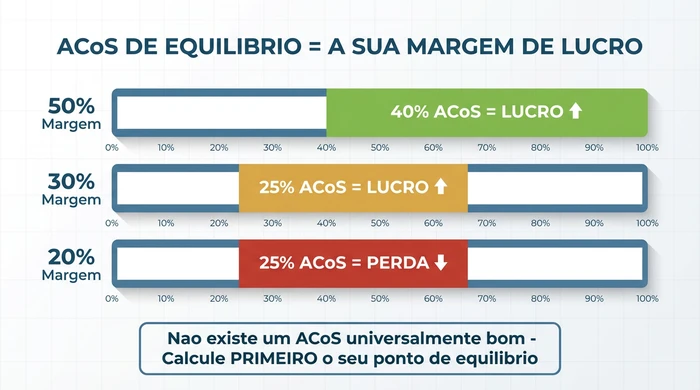
“I want a 25% ACoS” without considering margin is an empty goal. Each product has a different margin and therefore a different break-even point.
Solution: Calculate the break-even ACoS for each product. Use that number as your reference, not generic industry targets.
When to Optimise vs When to Wait
Patience is a skill in Amazon PPC management. Knowing when to act and when to wait separates efficient managers from managers who waste budget.
Signs to Wait
- Fewer than 100 clicks on the element you want to evaluate
- Fewer than 7 days of data
- Campaign has just been launched or changed
- Data shows high day-to-day variability
Signs to Act
- 100+ clicks with a clear trend
- Budget consistently runs out in profitable campaigns
- Clearly irrelevant search terms with significant spend
- Technical problems (rejected ads, ineligible products)
The Haemorrhage Exception
If a campaign is spending rapidly with zero sales and clicks on clearly irrelevant terms, you do not need to wait 7 days. Pause, investigate, and correct before reactivating.
Frequently Asked Questions
What is Amazon PPC management?
Amazon PPC management is the ongoing process of monitoring, optimising and adjusting your advertising campaigns on Amazon. It includes performance analysis, bid adjustments, adding negative keywords, and decisions about pausing or scaling campaigns based on profitability data. It is not one-off setup, but regular maintenance.
How often should I check my Amazon PPC campaigns?
Check basic metrics daily in 5 minutes just to identify urgent problems. Carry out detailed performance analysis weekly, dedicating 30-60 minutes. Run a monthly strategic review. Avoid making changes before having 7-10 days of data. Checking too frequently leads to hasty decisions based on small samples.
How do I edit an Amazon PPC campaign?
In Seller Central, go to Advertising > Campaign Manager. Click on the campaign name to access the settings. You can change the daily budget, campaign status, bidding strategy, and individual bids per keyword. For bulk changes, use the bulk sheets function. Changes take effect immediately, but wait 7 days to assess impact.
How do I delete an Amazon PPC campaign?
Amazon PPC campaigns cannot be permanently deleted, only archived. In Campaign Manager, select the campaign and change its status to Archived. The campaign stops spending immediately and disappears from the main view, but historical data remains accessible in reports for future analysis.
What is an Amazon PPC manager?
An Amazon PPC manager is a professional or tool that administers advertising campaigns on Amazon. It can be a person (in-house specialist or Amazon Ads management agency), automation software, or the seller themselves. Responsibilities include bid optimisation, search term analysis, budget management, and strategic decisions about campaign structure.
Should I pause or archive poorly performing campaigns?
Pause campaigns you intend to reactivate in the future: seasonal, tests, temporarily out-of-stock products. Archive campaigns you will definitely not use again: discontinued products, replaced structures. Before pausing, always check whether the campaign has profitable search terms that should be moved to other campaigns. Never stop search terms that generate profit.
Conclusion
Managing Amazon PPC campaigns efficiently requires structure, consistency and patience. It is not about constantly checking numbers, but about having defined routines that turn data into decisions.
The fundamental principles are simple: use clear naming, analyse at the search term level, wait for sufficient data before acting, and never stop profitable search terms. The complexity lies in the discipline of applying them consistently.
Start with the weekly routine. Dedicate 30-60 minutes per week to structured analysis. Over time, you will develop intuition about your products and market that complements the data. But intuition without data is guesswork, and data without analysis is noise.
Amazon advertising management is a skill that improves with practice. Every week of analysis teaches something new about your customers and products. The investment in learning to manage Amazon PPC campaigns correctly pays off in saved budget and increased sales.